Stall Assignment allows the user to assign Trainers to stalls and maintain a barn list.
To assign stalls, select a Barn from the drop down menu next to "Barns"
To assign a stall double click on a stall a menu will appear. See example below.
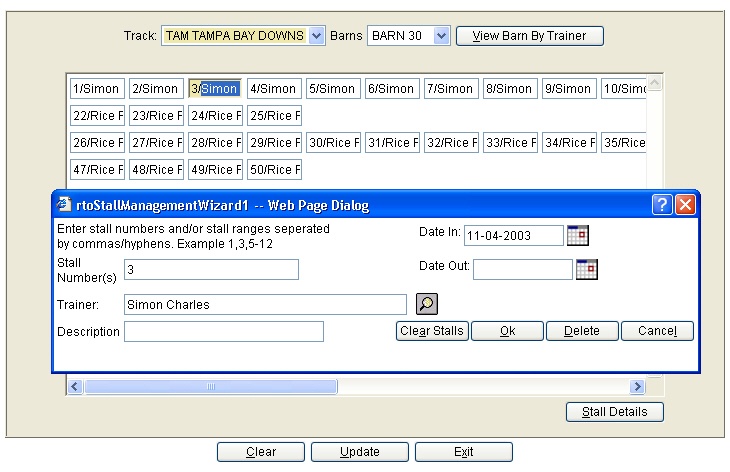
Stall Number(s) – Will default to stall number that was clicked on.
Trainer – Search for the trainer you wish to assign a stall to.
Description – This is a free form text box to type comments.
Date In – This will default to today’s date
Date out – Put the date in the box that the Trainer has been removed from that stall.
Clear Stalls – This will remove the trainer from the stall.
Ok – Select "OK" when you are finished adding to or removing a trainer from that stall.
Delete – This will remove the trainer from the stall.
Cancel – Press ‘Cancel’ if you do not wish to save the information.
If the user would like to assign multiple stalls at once, then click on any stall and put in the stall number you would like to start with, put in a hyphen, than the stall number you wish to stop at. Example: 1-10. This will assign the trainer selected to stalls 1 through 10. If you wish to assign the trainer to various stalls, then use a comma. Example: 1,3,7,9. This will assign the trainer selected to stall numbers 1,3,7 and 9.
There is a description on this functionality on the top of the stall assignment page. See example above. "Enter stall numbers and/or……"
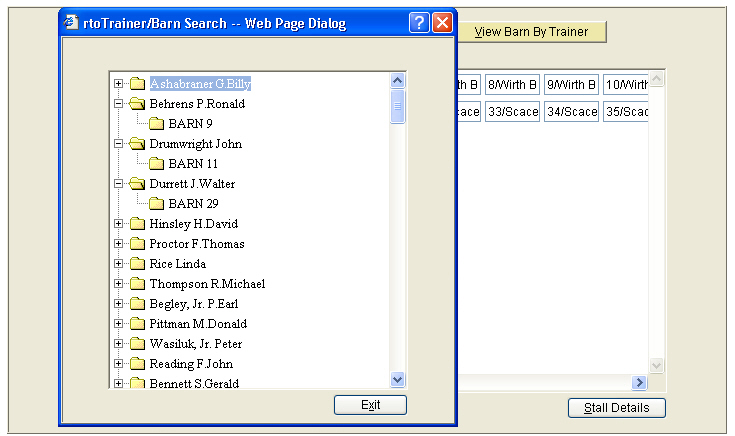
View Barn by Trainer
Select "View Barn by Trainer" to see what barn a trainer has been assigned to. See example below.